

Create custom tunings and explore the full fretboard
Set up 4 to 12 strings, choose each note, then display scales, chords, intervals and voicings in your instrument’s actual configuration.
Explore the features in screenshots
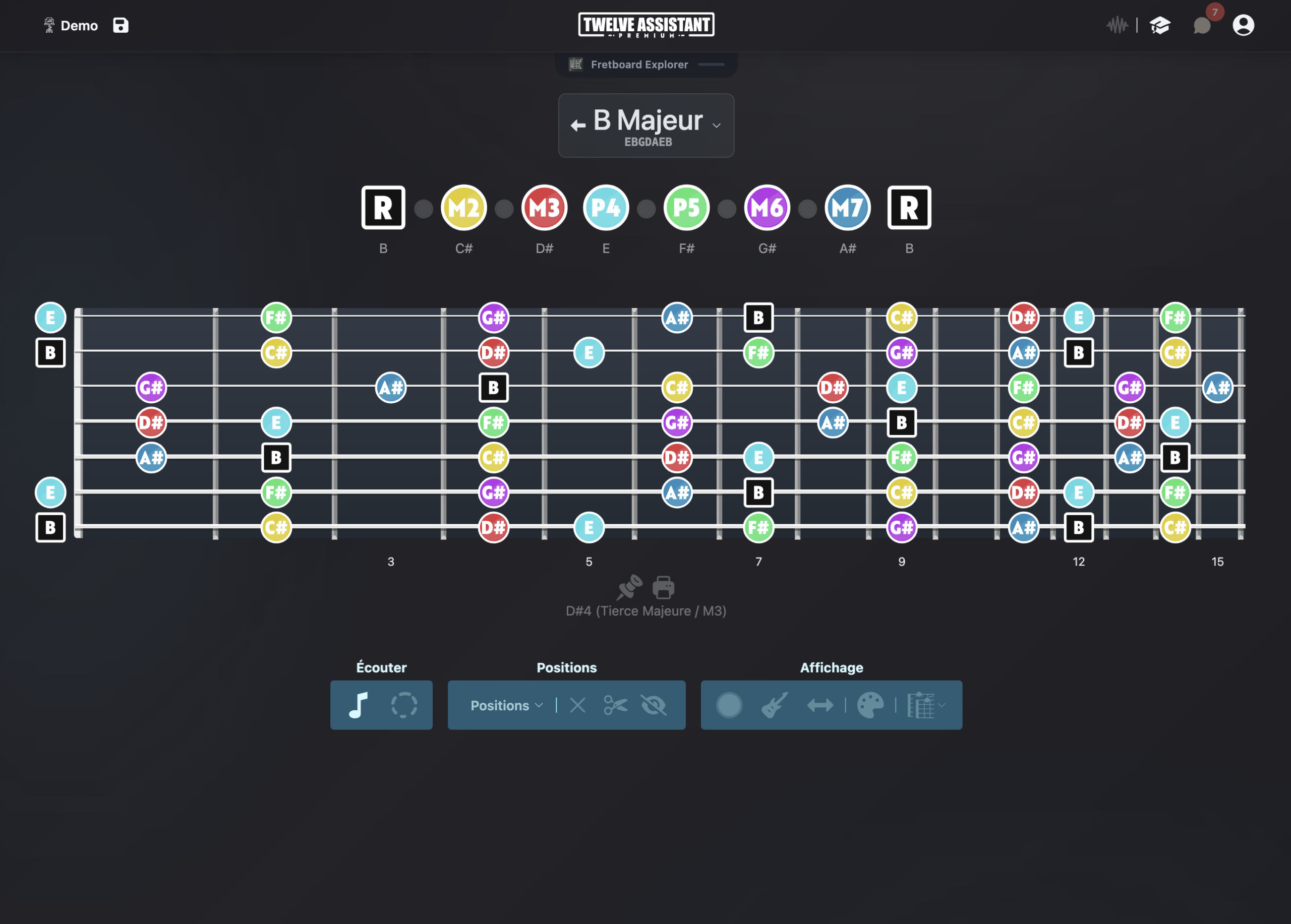
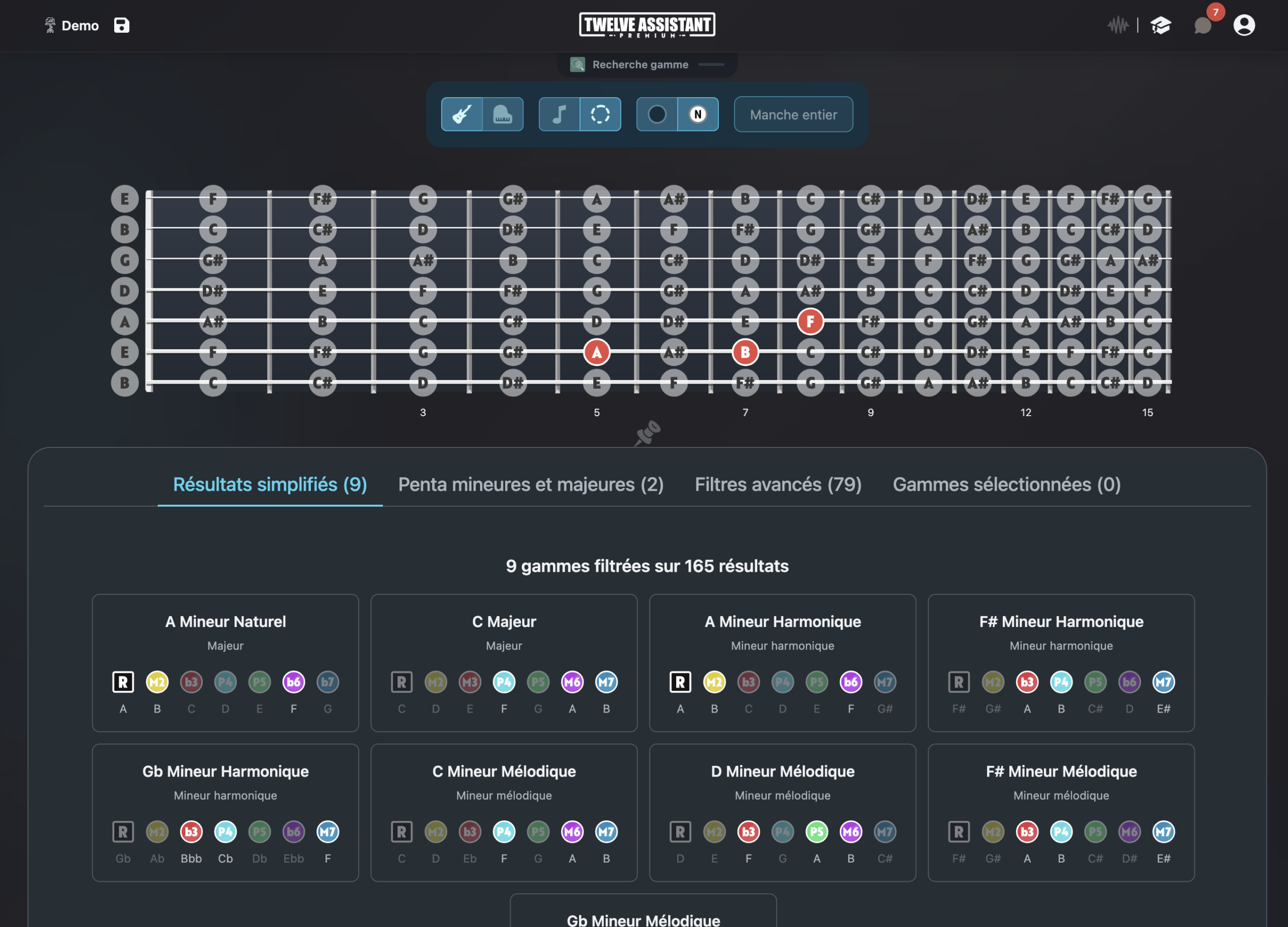
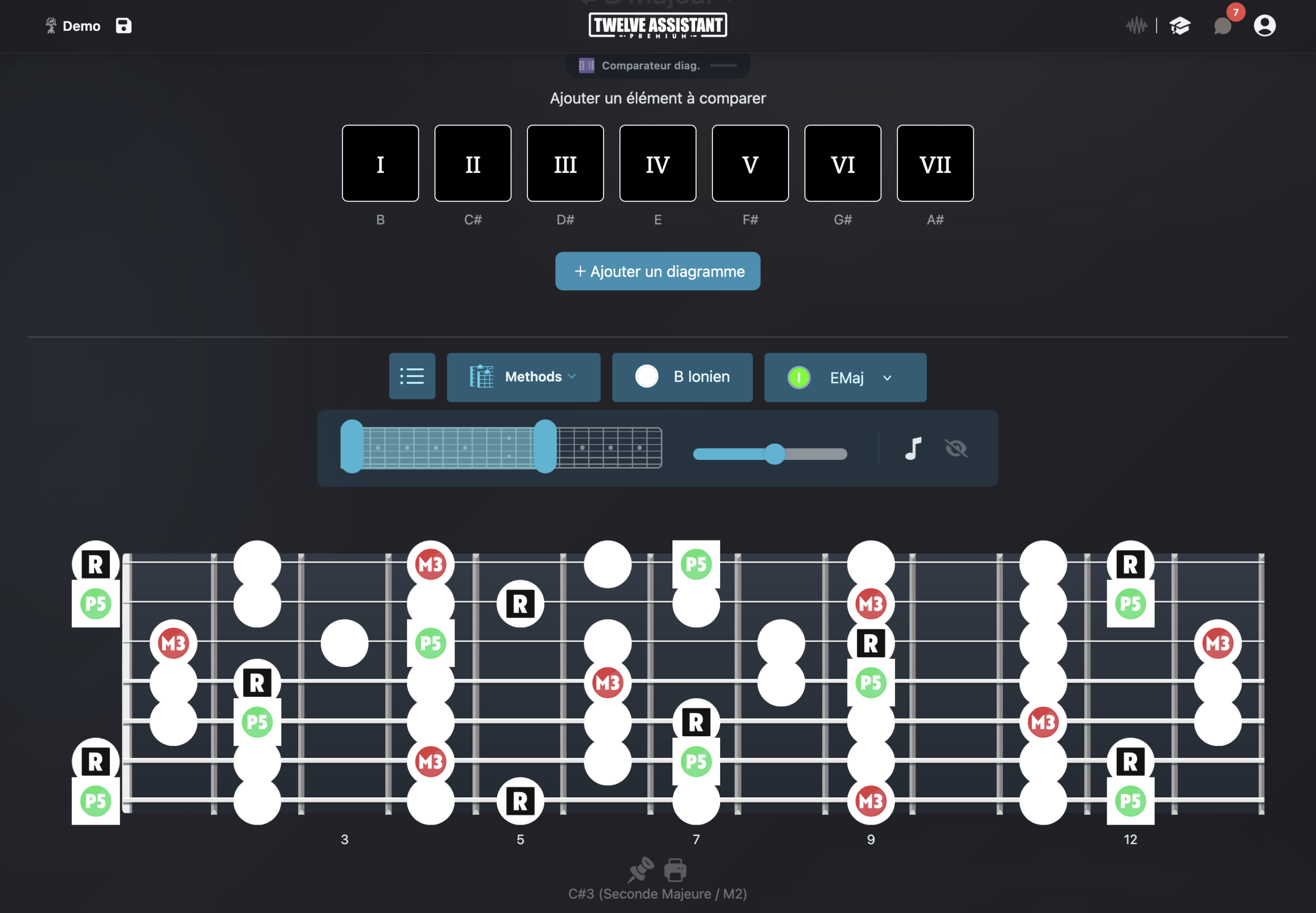
Your instrument shouldn’t fit into a box
Open tuning, Drop tuning, extended range guitar, custom bass, banjo, ukulele or hybrid instrument: alternate tunings change every position. Twelve Assistant lets you describe your actual setup instead of forcing a standard model.
Choose the number of strings, from four to twelve, then set the pitch of each one. The fretboard immediately becomes the reference for displaying notes, intervals, scales and chords.
This configuration can serve to study a piece, document a luthier’s instrument, prepare a composition or save multiple tunings you use regularly.
A fretboard built string by string
4 to 12 strings
Adapt the fretboard width to your instrument.
Each string configurable
Define precisely the open note of each string.
Scales recalculated
Visualize positions based on your chosen configuration.
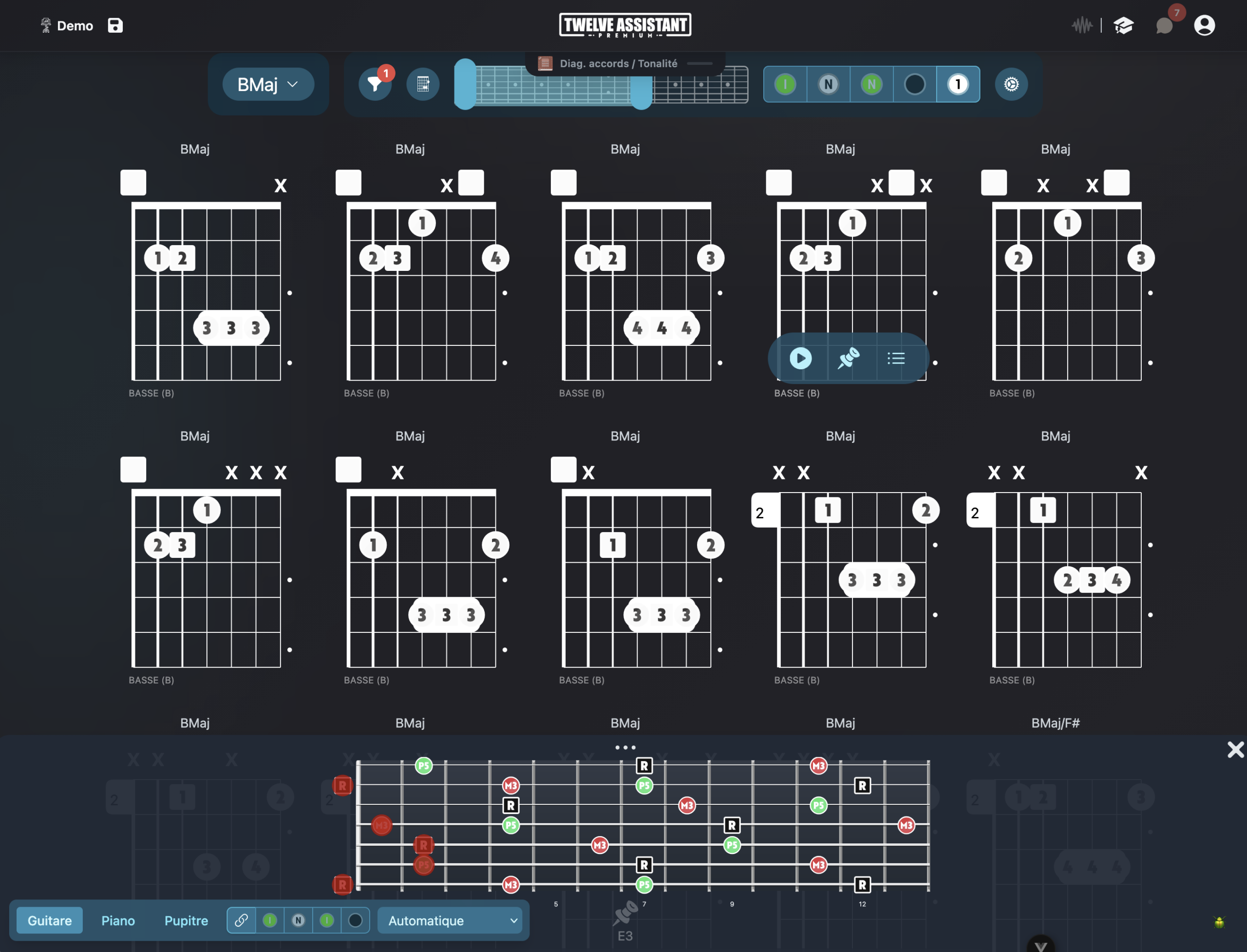
Chords and voicings
Explore chord tones and shapes adapted to the tuning.
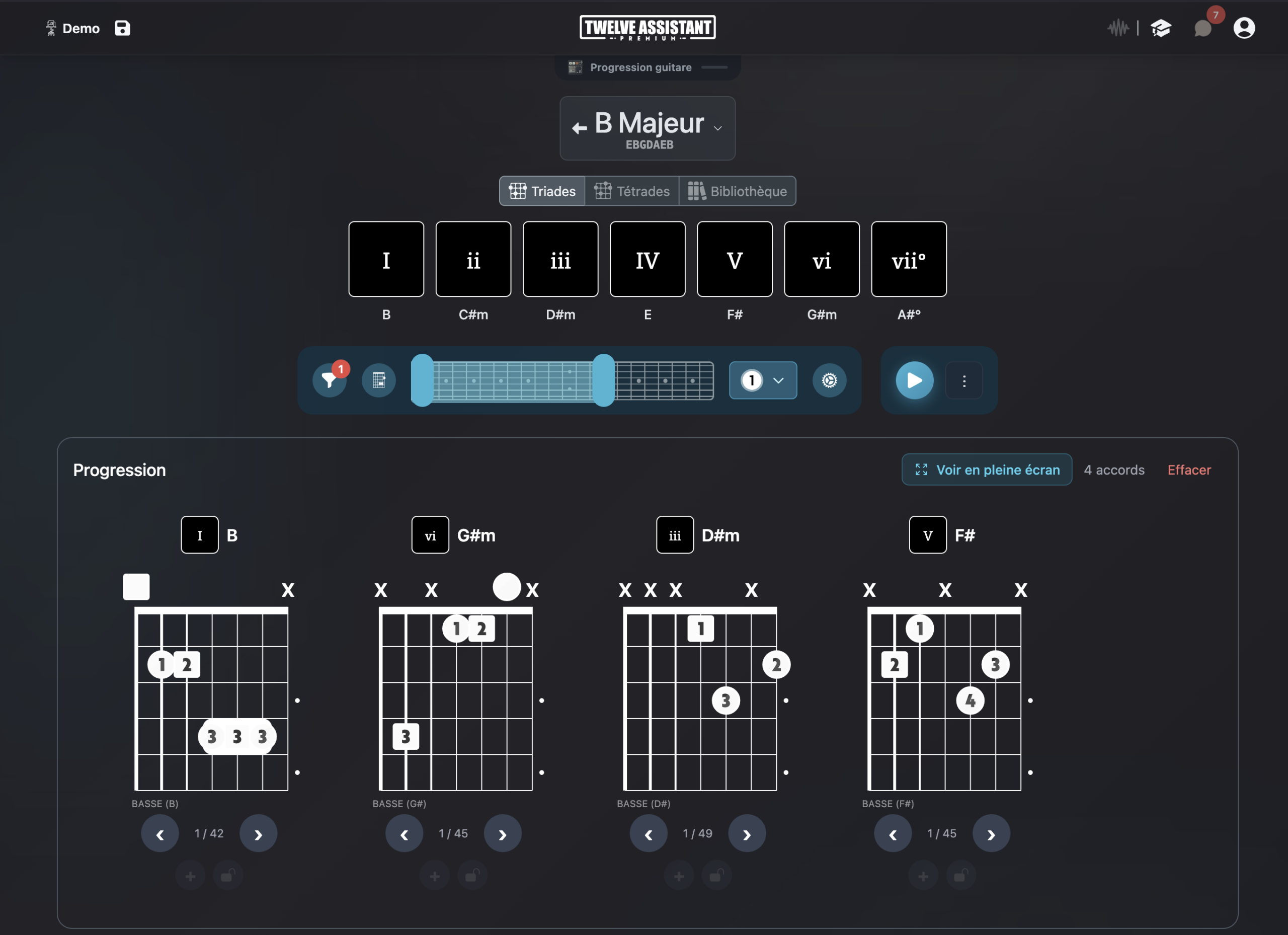
Progressions
Work through chord sequences in your instrument’s actual context.
Right or left-handed
Associate the tuning with your preferred orientation.
Keep consistency across all tools
Once the tuning is defined, compatible displays use the same foundation. You avoid mentally recalculating positions between the visualizer, diagrams, chord searches and elements sent to the Music Stand.
The chord progression generator provides harmonic structure. You can then search or build voicings that match your tuning, listen to them and prepare a practice sheet with your chosen positions.
Advanced features around your tuning
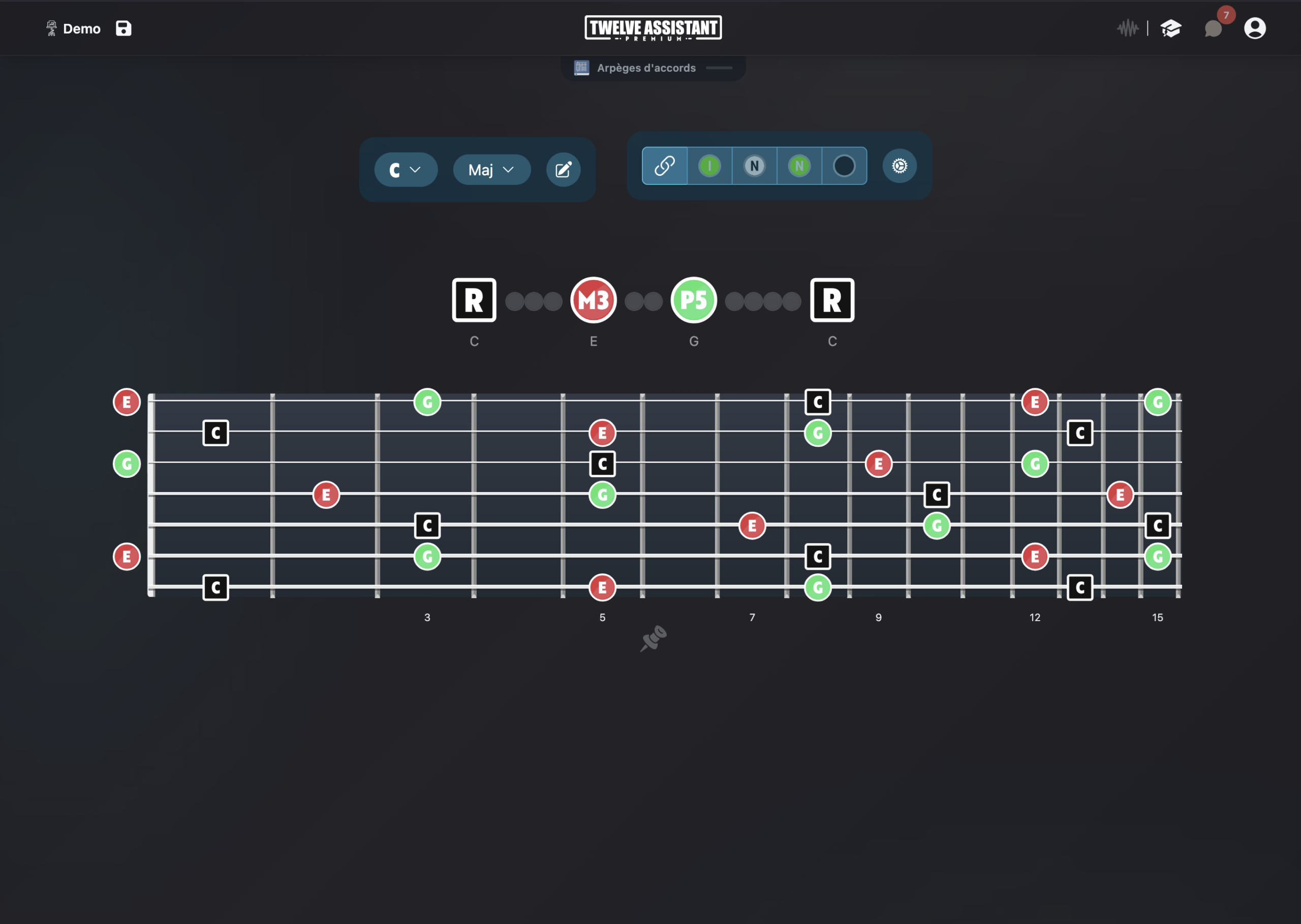
Scale and chord libraries
Start from a key, mode or chord, then display musical information on your fretboard’s actual configuration.
Chord progressions
Create a chord sequence, listen to its movement and search for positions or voicings adapted to your instrument and tuning.
Personal Music Stand
Gather useful diagrams, positions and analyses in a practice sheet you can organize according to your workflow.
Display everything left-handed
String count and tuning are independent from orientation. You can therefore keep exactly the same musical configuration and display the fretboard mirrored for a left-handed instrument.
When the left-handed preference is saved in your profile, compatible fretboard and diagram displays automatically apply it. The setting remains adjustable at any time.
A preference that follows you
Choose right or left-handed once in your preferences. The fretboard keeps the same tuning and only adapts its visual orientation.
This preference then applies to fretboard displays and compatible diagrams.
Create and use a new tuning
Select the number of strings, enter notes from lowest to highest, then name your configuration. Open a scale or chord to check the fretboard and save useful elements in your Music Stand.
Choose instrument
Define string count, tuning and orientation.
Display content
Select a scale, chord or progression and choose visible information.
Save results
Listen, compare and place your useful diagrams in the Music Stand.
Discover all features in video
See how Twelve Assistant connects fretboard, scale and chord libraries, voicings, progressions and Music Stand in a single workspace.
Frequently asked questions
How many strings can I configure?
The fretboard can be customized from 4 to 12 strings.
Can I create Drop or Open tunings?
Yes. Each string is defined separately, covering Drops, Opens and hybrid configurations.
Are scales recalculated?
Yes. The display of notes and intervals depends on your chosen open notes.
Can I use this tuning left-handed?
Yes. Orientation is a preference separate from tuning.
Can I prepare chord progressions?
Yes. Progression tools and libraries complement work on the custom fretboard.
Explore other instruments and tunings
Try Twelve Assistant with your instrument
Start for free, watch the feature video or compare plans based on your needs.